
How to Improve Shopify Site Speed for Better Conversions
Slow-loading Shopify stores frustrate customers and cost you sales in markets from Canada to Australia. Every extra second your site takes to load can push buyers away, even if your products are popular. With limited time and technical knowledge, finding simple ways to improve speed is a top priority. This guide covers automated steps with tools like GTmetrix and Google PageSpeed Insights so you can achieve actionable recommendations for faster, smoother shopping experiences worldwide.
Table of Contents
- Step 1: Assess Current Site Performance Using Online Tools
- Step 2: Remove Unnecessary Apps And Bulky Code
- Step 3: Optimize Images And Media Files For Faster Loading
- Step 4: Implement Fast-Loading Themes And Essential Plugins
- Step 5: Verify Speed Improvements And Monitor Ongoing Performance
Quick Summary
| Key Point | Explanation |
|---|---|
| 1. Use performance testing tools | Run comprehensive tests with tools like GTmetrix to identify speed issues and areas for optimization. |
| 2. Remove unused apps and code | Audit your Shopify apps and eliminate leftover scripts to enhance site performance and speed. |
| 3. Optimize images effectively | Compress images using tools to reduce load times while maintaining quality for better user experience. |
| 4. Choose fast-loading themes | Select Shopify themes that minimize code to improve loading times and overall site speed. |
| 5. Monitor performance regularly | Continuously track site performance and adjust strategies to maintain speed and improve conversions. |
Step 1: Assess current site performance using online tools
Understanding your Shopify store’s site speed is the critical first step toward improving conversion rates. By using specialized performance testing tools, you can get precise insights into how your website loads and identify specific areas for optimization.
Start by running a comprehensive performance test with website performance diagnostic tools. These tools provide detailed metrics about your site’s speed, responsiveness, and potential bottlenecks. The top recommended platforms include:
- GTmetrix: Offers detailed performance analysis
- Google PageSpeed Insights: Provides mobile and desktop performance scores
- Pingdom: Gives global performance testing capabilities
When analyzing your site, pay close attention to these key performance indicators:
Here’s a quick comparison of popular website performance tools for Shopify stores:
| Tool Name | Key Strength | Type of Analysis |
|---|---|---|
| GTmetrix | In-depth waterfall reports | Desktop & mobile |
| Google PageSpeed Insights | Mobile-first metrics | Core Web Vitals |
| Pingdom | Global location testing | Real user simulation |
This comparison helps you choose the right tool for detailed site analysis.
- Page load time
- Total page size
- Number of server requests
- Core Web Vitals score
- Mobile responsiveness
Each tool will generate a comprehensive report highlighting specific issues impacting your site’s performance. Look for actionable recommendations such as image compression, browser caching optimization, and minimizing render-blocking resources.

Analyzing multiple tools provides a more holistic view of your site’s performance across different testing environments. This approach helps you identify consistent issues that might be slowing down your Shopify store.
Pro tip: Run performance tests from different global locations to understand how your site performs for international customers, not just locally.
Step 2: Remove unnecessary apps and bulky code
Reducing unnecessary apps and code bloat is crucial for optimizing your Shopify store’s performance. Unnecessary scripts and uninstalled app remnants can significantly slow down your website and negatively impact user experience.
Start by identifying unused Shopify app code through comprehensive diagnostic tools. Here are key steps to streamline your store’s code:
- Review all installed and uninstalled apps in your Shopify dashboard
- Use performance analysis tools like PageSpeed Insights and Lighthouse
- Check for leftover JavaScript and CSS from removed applications
- Examine your theme files for unnecessary scripts
When cleaning up your code, follow these critical guidelines:
- Carefully audit each script’s purpose
- Remove commented-out or inactive code sections
- Conditionally load app assets only on relevant pages
- Enable lazy loading for non-critical resources
- Test thoroughly after each code modification
Potential code removal targets include redundant tracking scripts, outdated app integrations, and unused CSS files. Be cautious during this process to avoid breaking critical site functionality.
Removing unnecessary code can improve site speed by up to 30% and enhance overall user experience.
Pro tip: Always create a backup of your theme files before making any code modifications to prevent accidental site disruptions.
Step 3: Optimize images and media files for faster loading
Optimizing images and media files is a crucial strategy for improving your Shopify store’s loading speed and overall performance. Large, uncompressed images can dramatically slow down your website, negatively impacting user experience and search engine rankings.
Image optimization techniques can significantly reduce page load times while maintaining visual quality. Here are key strategies to streamline your media files:
- Choose the right file format (JPEG for photos, PNG for graphics)
- Use WebP for efficient compression
- Resize images to match display dimensions
- Compress images without sacrificing quality
- Add descriptive alt text for SEO and accessibility
Implement these image optimization steps:
- Audit existing product and page images
- Select appropriate compression tools
- Batch process image files
- Implement lazy loading for media
- Regularly review and update image assets
Critical optimization tools include TinyIMG, CrushPics, and Shopify’s built-in content delivery network (CDN). These platforms help automatically compress and serve optimized images across different devices and screen sizes.
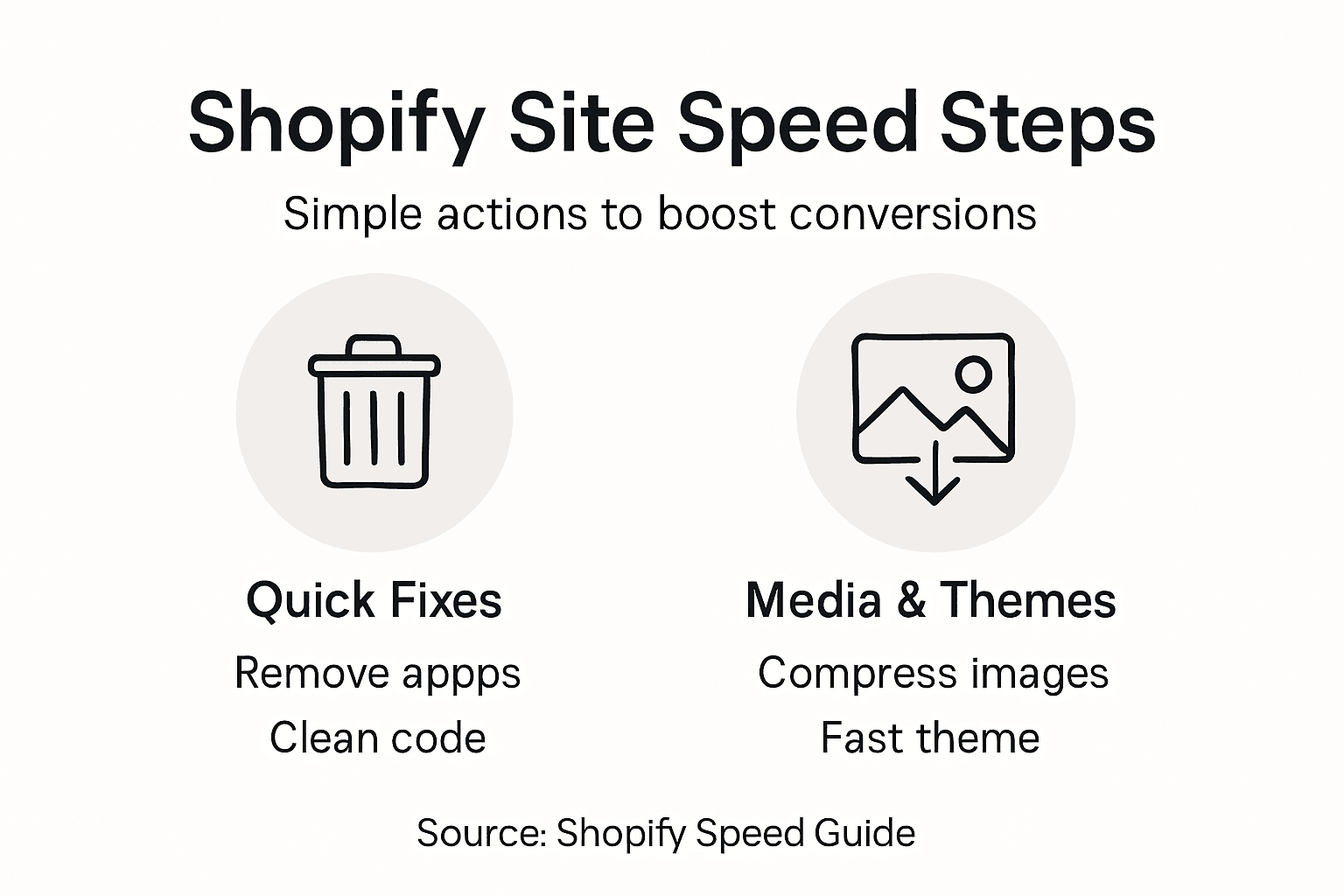
Below is a summary of image optimization tools and their business impact:
| Tool | Main Benefit | Business Impact |
|---|---|---|
| TinyIMG | Automatic image compression | Faster load times, improved SEO |
| CrushPics | Batch image processing | Reduced page weight, better U/X |
| Shopify CDN | Global content delivery | Consistent speed across regions |
Selecting the appropriate image tool streamlines workflow and boosts conversion.
Properly optimized images can reduce page weight by up to 70%, significantly improving site speed and user engagement.
Pro tip: Create a consistent image optimization workflow to automatically compress new media files as you add them to your store.
Step 4: Implement fast-loading themes and essential plugins
Selecting the right Shopify theme is a critical step in optimizing your store’s performance and ensuring lightning-fast loading times. Your theme serves as the foundation for your entire online shopping experience, directly impacting user engagement and conversion rates.
Optimized Shopify themes play a crucial role in site speed and user experience. Look for themes with these key performance characteristics:
- Minimal JavaScript and CSS code
- Built-in lazy loading capabilities
- Responsive design for multiple devices
- Clean, lightweight architecture
- Support for modern web performance standards
When selecting a theme, consider these top-performing options:
- Aurora theme
- Bullet theme
- Turbo theme
- Flex theme
- Booster theme
Performance-focused features to prioritize include fast asset delivery, reduced code complexity, and integrated optimization tools. These themes help minimize the need for additional speed-enhancing plugins and reduce overall site load times.
Choosing the right theme can improve page load speeds by up to 50%, directly impacting your store’s conversion potential.
Pro tip: Always preview and test a theme’s performance using Google PageSpeed Insights before making a final selection to ensure optimal site speed.
Step 5: Verify speed improvements and monitor ongoing performance
Tracking and verifying your Shopify store’s performance improvements is crucial to ensuring your optimization efforts deliver tangible results. Continuous monitoring helps you understand the direct impact of speed enhancements on user experience and conversion rates.
Shopify’s performance tracking tools provide comprehensive insights into your store’s speed and user experience. These diagnostic resources help you measure and validate the effectiveness of your optimization strategies:
- Monitor Core Web Vitals metrics
- Track page load times across devices
- Compare performance against industry benchmarks
- Analyze user interaction and engagement
- Identify potential performance regressions
Utilize these key performance monitoring steps:
- Access Shopify’s Web Performance Dashboard
- Review Core Web Vitals regularly
- Check performance by page type and device
- Compare metrics before and after optimizations
- Set up automated performance alerts
Performance metrics to prioritize include Largest Contentful Paint, Interaction to Next Paint, and Cumulative Layout Shift. These indicators provide a comprehensive view of your store’s loading speed and user experience.
Consistent performance monitoring can help you maintain site speed and directly improve conversion rates by up to 20%.
Pro tip: Schedule monthly performance reviews to catch and address any speed regressions before they impact your store’s user experience.
Boost Your Shopify Store Speed and Conversions Effortlessly
Improving your Shopify site speed is essential to turning visitors into loyal customers but tackling technical challenges like code bloat and image optimization can feel overwhelming. You want fast-loading pages with seamless user experiences that lead to higher conversion rates. That is where Automagic.li changes the game for Shopify store owners who want proven ways to optimize without hiring developers or writing code. Our AI-powered platform streamlines A/B testing using over 40 pre-tested variations designed to boost conversions on even slower sites.
Take control of your store’s performance by automating data-driven improvements that complement your site speed efforts. The platform’s ease of use means you can quickly deploy high-impact tests tailored specifically for Shopify themes and content. Don’t let slow site speed hold back your sales growth. Visit Automagic.li now and start optimizing your store with confidence using advanced AI-driven testing that delivers measurable results fast.
Frequently Asked Questions
How can I assess my Shopify site’s current speed?
To assess your Shopify site’s current speed, use online performance testing tools that provide detailed metrics. Run a performance test to identify page load times, total page size, and responsiveness. Aim to analyze your site with multiple tools to ensure a comprehensive understanding of its performance.
What steps should I take to remove unnecessary apps and bulky code?
Start by reviewing all installed and uninstalled apps in your Shopify dashboard to identify any remnants of unused app code. Use performance analysis tools to check for leftover JavaScript and CSS, and then remove any unnecessary scripts or code snippets. By cleaning up your code, you can improve site speed significantly, potentially by up to 30%.
How do I optimize images and media files on my Shopify store?
To optimize images and media files, choose the appropriate file format and resize them to match display dimensions, ensuring they are not larger than necessary. Implement compression techniques to reduce file sizes without losing quality, and utilize lazy loading for non-critical media. This can reduce page weight by up to 70%, enhancing load times and user engagement.
What features should I look for in a fast-loading Shopify theme?
When selecting a theme for your Shopify store, prioritize minimal JavaScript and CSS code, built-in lazy loading capabilities, and responsive design. Opt for a clean, lightweight theme architecture that aligns with modern web performance standards. This choice can improve your site speed by up to 50%, positively impacting your conversion rates.
How can I verify speed improvements after optimization?
To verify speed improvements after optimization, regularly monitor Core Web Vitals metrics and track page load times across different devices. Use Shopify’s performance tracking tools to compare current metrics with those prior to optimization efforts. This ongoing review will help maintain site speed and potentially increase conversion rates by up to 20%.
Recommended
- 7-Step Shopify Conversion Checklist for Store Growth – Automagic
- Conversions vs. Traffic: Driving Shopify Store Success – Automagic
- Shopify Optimization Strategies: Maximize Store Conversions – Automagic
- Conversion Rate Benchmarks: Boosting Shopify Sales – Automagic
- How to Plan Ecommerce Website for High Conversion Success